RDP Heartbeat
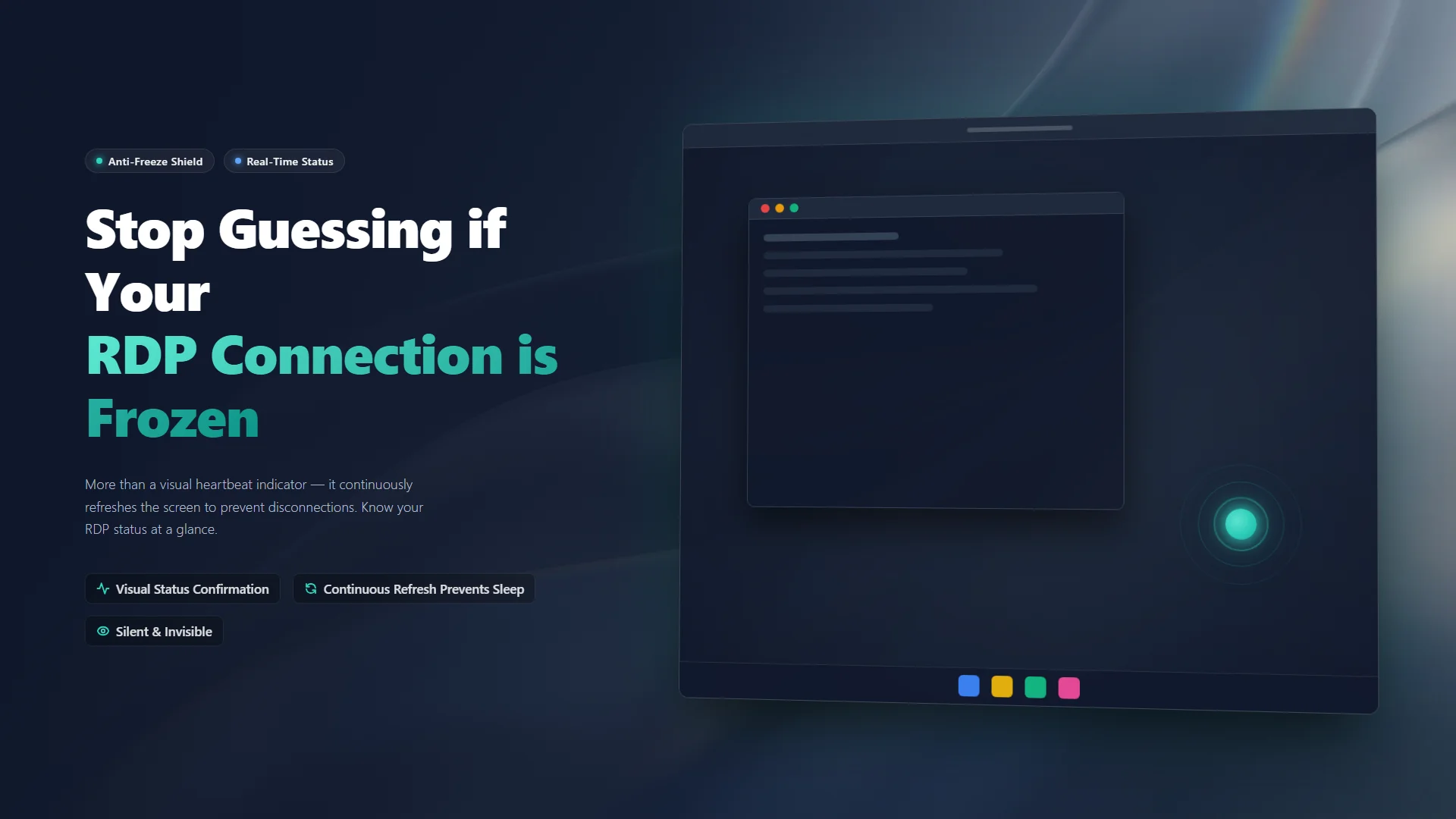
A subtle, visual keep-alive heartbeat for your remote desktop sessions
Keep your RDP connection alive with a smooth, pulsing indicator. Instantly know if your session is still connected or has silently stalled. Native WinUI 3 experience, 100% offline.
Keep Your Heartbeat, Keep Connected
Have you ever been working remotely via RDP, running a long compile or waiting for an AI tool, when the screen suddenly freezes:
"Is it still processing, or has my connection dropped?"
The most frustrating part is that sometimes the display stops updating, but keyboard and mouse events are still being sent! You wiggle the mouse, hit Enter a few times, trying to wake it up — nothing. You reluctantly close the RDP window and reconnect, only to discover in horror that all those blind clicks and keystrokes were actually executed on the remote machine.
RDP Heartbeat was born to end this nightmare. It places a small, unobtrusive "breathing" light on your screen — if the light is pulsing, your connection is alive; if it freezes, you know it's time to reconnect, and you'll never blindly operate on a frozen screen again.

🚀 Features
- Visual Heartbeat A smooth, pulsing dot that indicates your display stream is actively connected.
- Highly Customizable Pick any color to match your wallpaper, adjust size, speed, and opacity. Drag the heartbeat anywhere on your screen.
- Unobtrusive "Always on Top" keeps it visible without getting in your way. "Click-through" lets you click buttons underneath it.
- System Tray & Autostart Minimizes to the system tray and can start automatically with Windows.
- Modern UI Clean, frameless settings and about dialogs built with native WinUI 3.
- Multi-Language Supports English, Simplified Chinese, and more languages on the way.
🛡️ 100% Offline & Secure
RDP Heartbeat runs entirely locally. It collects no data, sends no telemetry, and requires no internet connection. Your settings are stored only on your machine.
For more details, please review our Privacy Policy and Terms of Use.
📦 How to Use
- Launch RDP Heartbeat — a pulsing dot will appear on your screen (default: bottom right).
- Move it: Right-click the system tray icon → enable Move Mode, then drag the dot to your desired spot.
- Customize: Open Settings to adjust color, size, speed, opacity, and more.
- Autostart: Enable "Start with Windows" in Settings so it's always ready when you remote in.
- Exit: Right-click the system tray icon → Exit.
🤝 Support & Feedback
RDP Heartbeat is completely free with no paywalls. If you find it useful, a positive review on the Microsoft Store would be greatly appreciated!
🛠️ Bug Reports & Feature Requests
- 🐛 Report a Bug: Found something wrong? Let us know!
- ✨ Suggest a Feature: Have an idea to make the app better? We'd love to hear it.